Friday, May 5, 2006

When I send an e-mail message, it doesn't leave my Outbox or why I repaired my relationship with Outlook :-)

outlook_logo I love Outlook, but there are times where it gets really hard to love it. But there's hope!

Here are solutions that solve two of the most annoying things I encountered with Outlook:

and

Have fun loving your Outlook again!

Thursday, February 16, 2006

Tip: Disable Restart Prompt from Automatic Updates (Win XP Pro, Windows Server 2003)

  • Windows Update In the Start Menu go to Run type "gpedit.msc" and press Enter
  • Now a Group Policy editor will open. In this window navigate to: Computer Configuration » Administrative Template » Windows Components » Windows Update
  • Double click on No auto-restart for scheduled Automatic Updates installations
  • In the settings window choose Enabled and click OK
  • Double click on Re-prompt for restart with scheduled installations
  • In the settings window choose Disabled and click OK
  • Close Group Policy Editor

Saturday, August 6, 2005

File replication with ROBOCOPY - Robust File Copy for Windows

Robocopy is a 32-bit command-line tool used for file replication. This tool helps maintain identical copies of a directory structure on a single computer or in separate network locations. Robocopy is included in the Microsoft® Windows® Resource Kit. (Update: Robocopy is already included in Windows Vista and higher.)

Robocopy - Robust File Copy for Windows 

Thursday, May 20, 2004

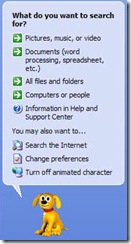
Get rid of the Windows XP Search Assistant aka "the dog"

Windows XP search for dogsThis post is intended for you if you answer at least one of the following questions with YES.

  • You're not satisfied with the "Find Files and Folders" view in Windows XP?
  • You liked the traditional Windows 2000 "Find Files and Folders" view?
  • You don't like dogs?

Nothing against the cute little dog, but...

NO, the Windows XP search was the one features I really will never get used to.

And YES, you can switch to the old-fashioned/Windows 2000-style search view by copying the following lines in a .REG file and importing it into your registry.

Windows Registry Editor Version 5.00

[HKEY_CURRENT_USER\Software\Microsoft\Windows\CurrentVersion\Explorer\CabinetState]
"Use Search Asst"="no"

That's it! Enjoy!

Download the zipped .REG file